
How To Force Two Factor Authentication in WordPress with Jetpack
What is Two Factor Authentication?
Two-factor authentication is a process involving two stages to verify the identity of an entity trying to access services in a computer or in a network. In this case the second state is confirming your identity by entering a unique code sent to your cell phone via SMS when logging into your WordPress website.
Why should I use Two Factor Authentication?
To significantly increase the security of your WordPress website.
How to force Two Factor Authentication in WordPress with Jetpack
-
Sign up for a WordPress.com account if you don’t have one already
-
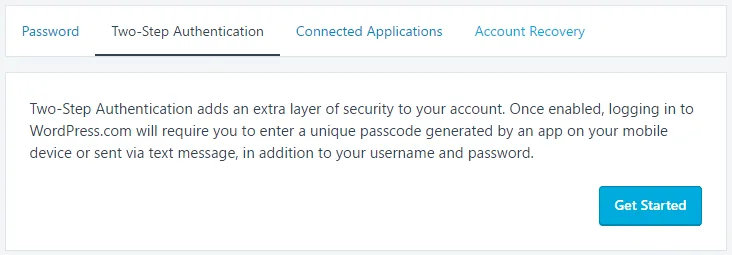
Login to your WordPress.com account and navigate to Profile > Security > Two-Step Authentication or just click this link to see the following:
-
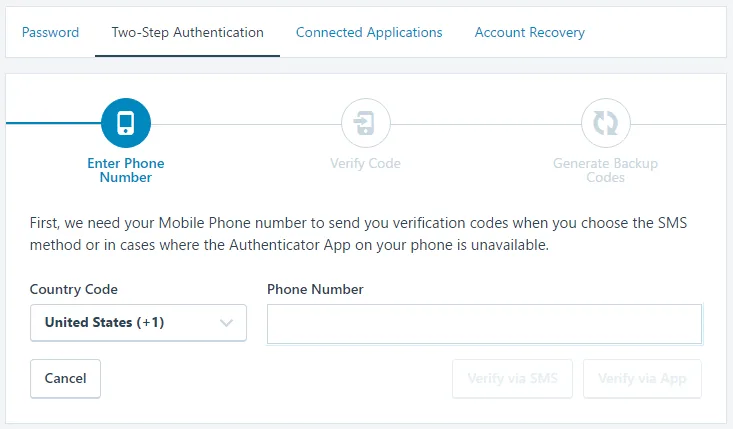
Click Get Started, enter your cell phone number and click Verify via SMS:
-
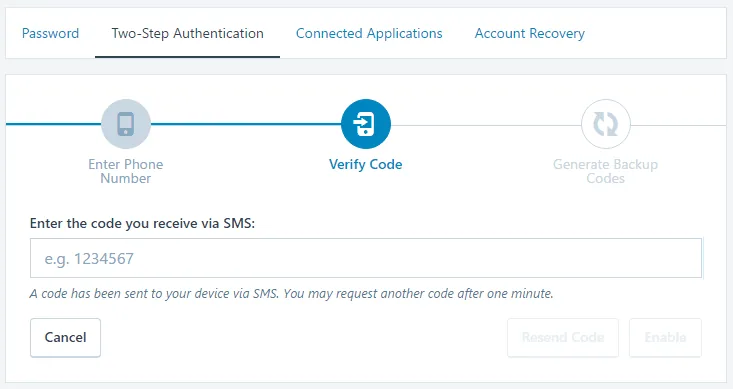
Enter the code that was texted to your cell phone and click Enable:
-
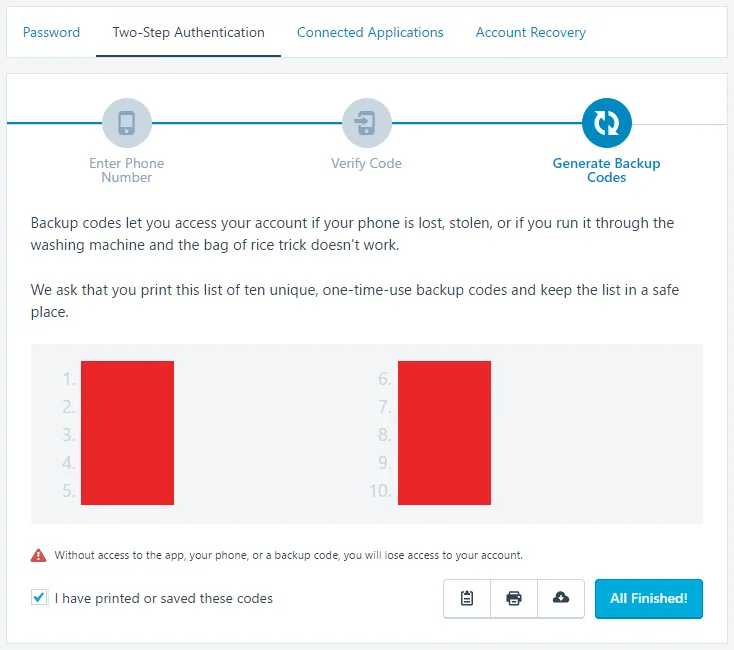
Save the listed Backup Codes somewhere safe, check I have printed or saved these codes click All Finished!
-
Install and enable the Jetpack by WordPress.com WordPress plugin
-
In your site’s WordPress admin dashboard navigate to Jetpack > Settings > Security, then toggle on the Single Sign On feature
-
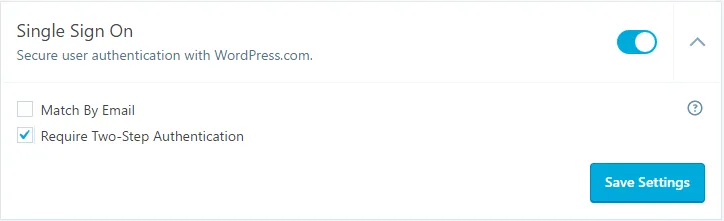
Next expand the settings for Single Sign On, check Require Two-Step Authentication and click Save Settings:
-
Now add the following code to your active theme’s function.php file to force logins to your site through WordPress.com:
// force users to login via wordpress.com add_filter( 'jetpack_sso_bypass_login_forward_wpcom', '__return_true' ); -
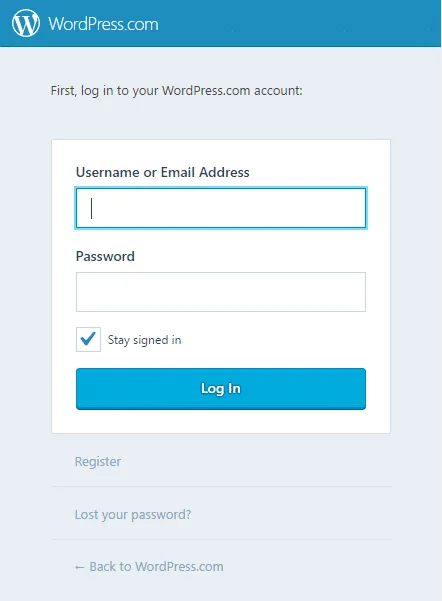
Now your WordPress login URL should redirect to the following login screen instead of the default one:
-
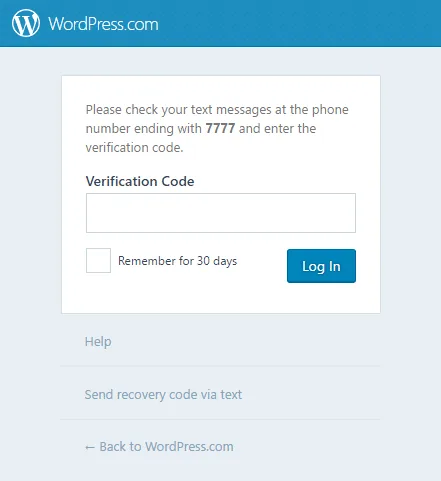
After you enter your WordPress.com credentials you should then be asked for your Verification Code that was texted to your smartphone as follows:
That’s it, your site is now significantly more secure using WordPress.com Two Factor Authentication!
If you don’t see it try clearing your cache, purging your CDN and accessing your WordPress login URL in Chrome’s incognito mode.
What happens when users try to login without Two Factor Authentication Enabled?
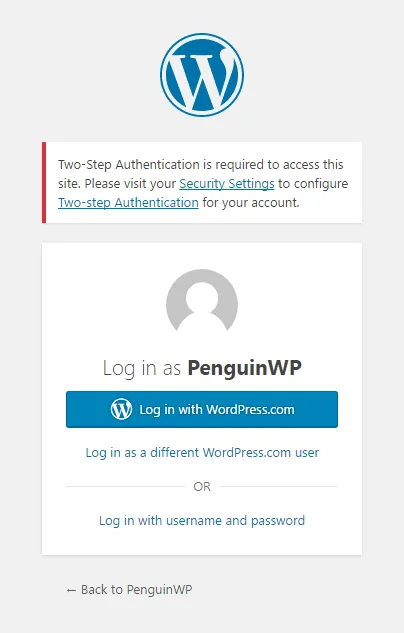
Every user will now need their own WordPress.com account with two factor authentication enabled in order to login to your WordPress site. If they attempt to log into their WordPress.com account without two factor authentication enabled they will get the following error message:
Related Articles

Frequently Asked Questions
What is two factor authentication in this context?
It's a login process that requires a second verification step, in this case a unique code sent to your phone via SMS, in addition to your normal WordPress password.
What do I need to force two factor authentication with Jetpack?
You need a WordPress.com account with two-step authentication enabled, the Jetpack plugin installed, and Single Sign On turned on with the Require Two-Step Authentication option checked.
What happens if a user tries to log in without two factor authentication enabled?
They'll receive an error message and won't be able to access the site, since every user needs their own WordPress.com account with two factor authentication turned on to log in once this is forced.
My WordPress login isn't redirecting to the WordPress.com login screen. What should I do?
Try clearing your cache, purging your CDN, and loading your WordPress login URL in an incognito browser window.
9 Comments
Question - does anyone know if there an app or plugin you can use to require two factor cell authentication for either our MLS software - or to access the page that software is on? I saw that type system on a firms site that sells realtor websites but think it was custom coded (HTML site) because it was not a WP site. We are trying to eliminate users from providing false log in details when they create an account in our MLS Software.