
How To Identify WordPress Plugins On Any WordPress Website
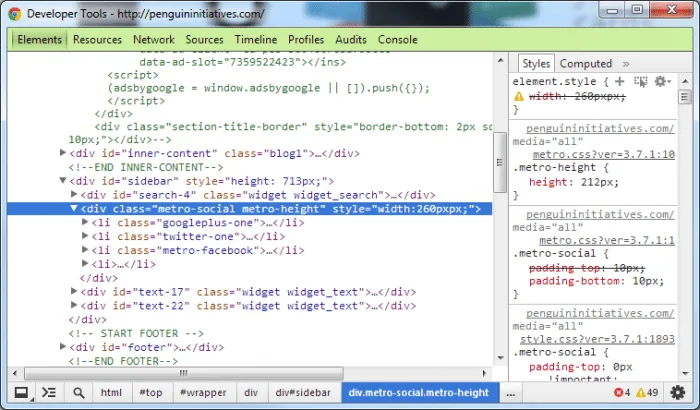
I had someone contact me recently that wanted to know the name of the WordPress Plugin I was using on my sidebar for social media. I’m used to just getting this info on my own using Google Chrome’s inspect element feature, as it works for the vast majority of WordPress Plugins. Usually there is a class or ID in the HTML code that reveals its name. Since its clear that not everyone does this, I thought I’d provide a guide on how to do this to benefit those who aren’t doing this already. So here’s how to identify the name of a WordPress plugin on someone else’s website without having to ask them for it (at least in most cases this works).
- Open up their website in the Google Chrome Browser.
- Hover over the WordPress Plugin that you want to identify with your cursor.
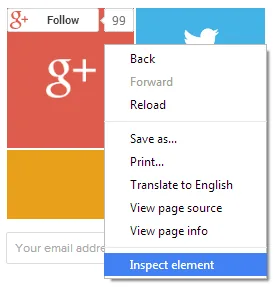
- Right click on it and select “Inspect element” like in the screenshot below:
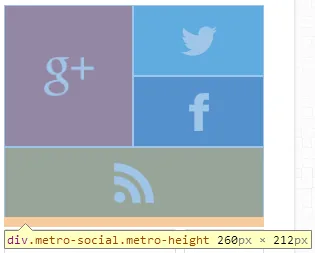
- Find the parent element of the WordPress Plugin. You can select different lines of HTML code in code view and the highlighting will change accordingly or you can re-inspect the element visually on the WordPress Plugin until you find the parent element. You’ll know it’s the parent element if when you inspect the element the entire WordPress Plugin is highlighted like in the following screenshot:
- Look for a class or ID that looks like the name of the WordPress Plugin. In this instance it is pretty obvious as you can see class=“metro-social metro-height” in the screenshot below. The class “metro-height” sounds like a setting for height for the metro Plugin, so we would likely go with “metro-social” instead.
- Now simply Google the WordPress Plugin’s class without the hyphens and append “wordpress plugin” to the end like in the following screenshot:
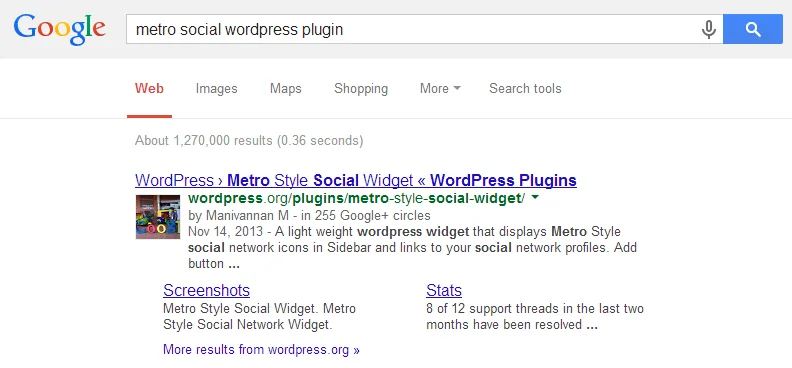
- There you have it, the WordPress Plugin you found on someone’s website that you wanted to use on yours. It’s that easy. Enjoy your lovely new WordPress Plugin!
I’m planning on making a Google Chrome plugin that will detect WordPress Plugins automatically, but this is the next best thing until I get around to it.
Related Articles



Frequently Asked Questions
How can I find out what WordPress plugin a site is using without asking the owner?
Right click the plugin's element on the page, choose Inspect Element in Chrome, and look for a class or ID name in the HTML that hints at the plugin's name.
What do I do once I find a class or ID name in the code?
Search Google for that class name, without the hyphens, followed by wordpress plugin, and it will usually surface the plugin you're looking for.
Does this method work for every WordPress plugin?
Not always, but it works for the vast majority of plugins, since most include a class or ID in their HTML output that reveals their name.
10 Comments
I've tried to find out what plugin was being used in the past and used Chrome to try and find out.
I never actually thought of googling "the WordPress Plugin’s class without the hyphens and append “wordpress plugin” to the end.
I'll try that next time.